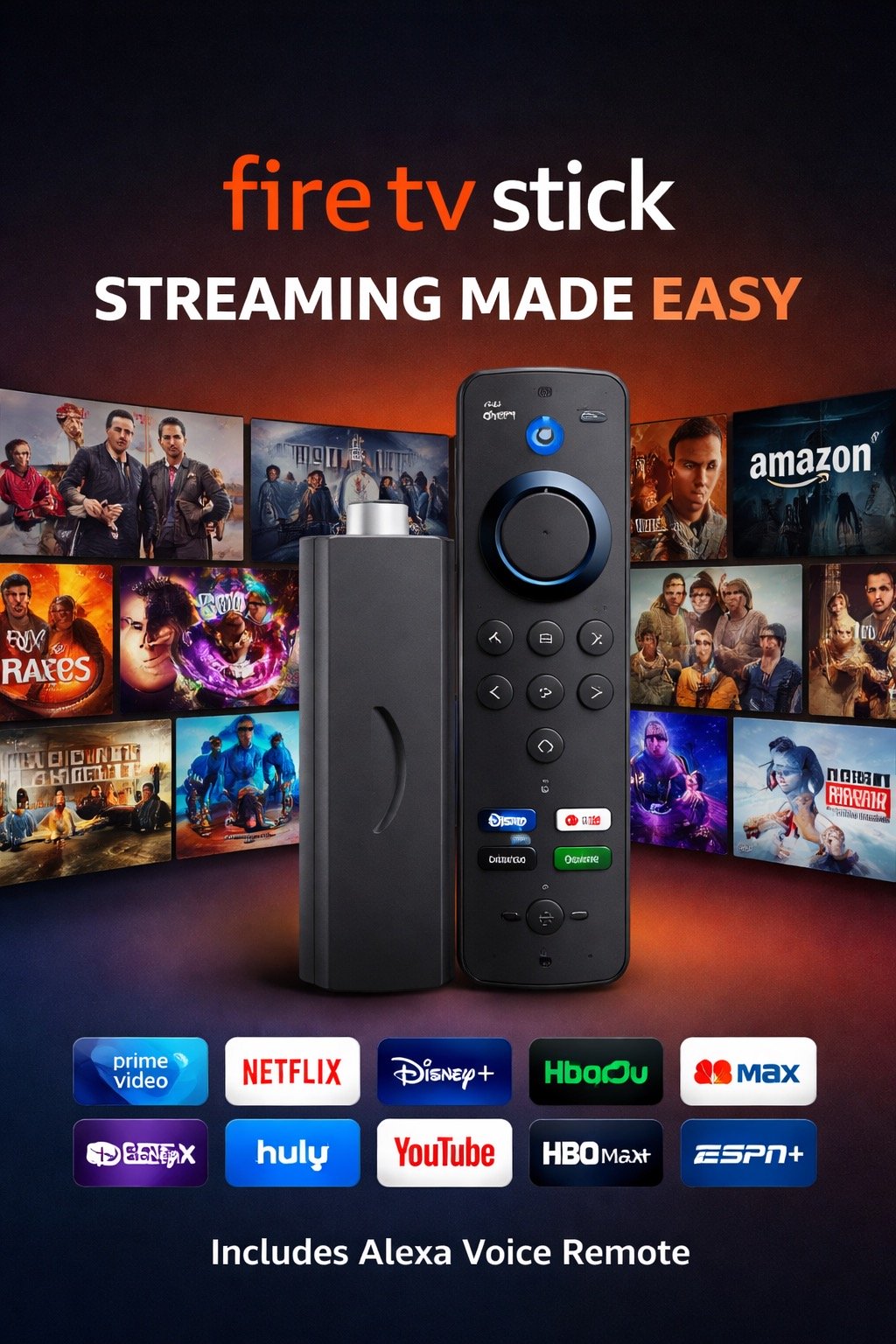
Prerequisites for Firestick
Before installing our premium IPTV player, you must allow your Firestick to install third-party applications. Amazon disables this by default for security.
Developer Options Hidden? If you cannot find Developer Options on newer Firestick models, navigate to Settings > My Fire TV > About and click the name of your Fire TV Stick exactly 7 times to unlock it.
-
Step 1: Enable Unknown Sources
Navigate to Settings (the gear icon on the far right of your home screen). Go to My Fire TV > Developer Options, and turn Install Unknown Apps to ON.
-
Step 2: Get the Downloader App
Return to the Firestick Home screen. Go to Find > Search. Type in "Downloader". Select the orange Downloader app icon and click Download / Get.
-
Step 3: Download EAGLEIPTV4K
Open the Downloader app. Allow any permissions it requests. In the URL/Search box in the center of the screen, type exactly:
3659607Click Go. The app will automatically redirect and begin downloading EAGLE_IBO-Player V3.8.
-
Step 4: Install and Login
Once the download finishes, the Firestick will prompt you to install. Click Install. Once installed, click Open. Select "Login with Xtream Codes API" and enter your Veroman Cloud credentials.
Need an active subscription?
You cannot use EAGLEIPTV4K without a premium IPTV subscription.